
Put the light in front of you
Face soft, even light. Avoid a bright window or strong light behind you, which can leave faces dark.
May we count page visits with Google Analytics? It stays off unless you allow it. No form contents, photos or videos are sent. Privacy details.
This choice controls Google Analytics. Cloudflare may still process site usage and delivery information.
A free at-home Halloween photo test
No decorating. Just your phone and your favorite people. Pose in a spooky scene and save a little Halloween fun.
TRY HALLOWEEN FREE →NO SIGNUP. NO CREDIT CARD.
Just open the test and try it.
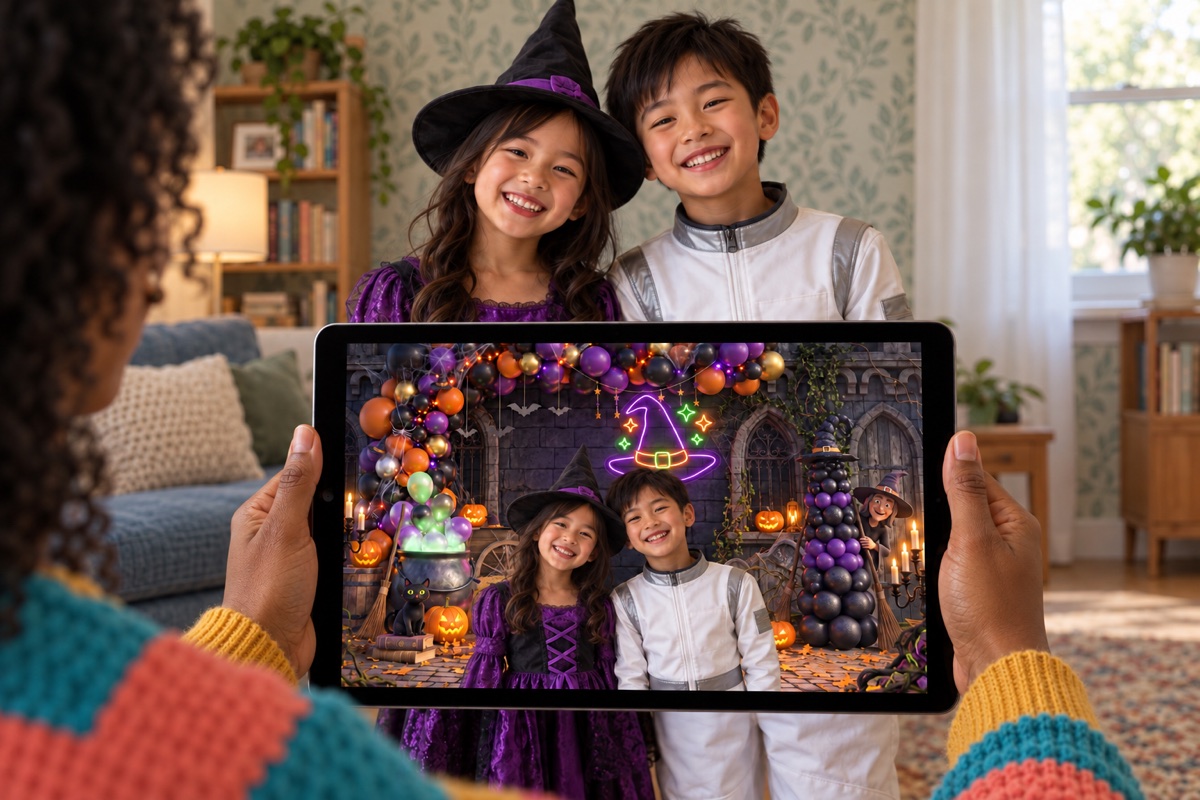
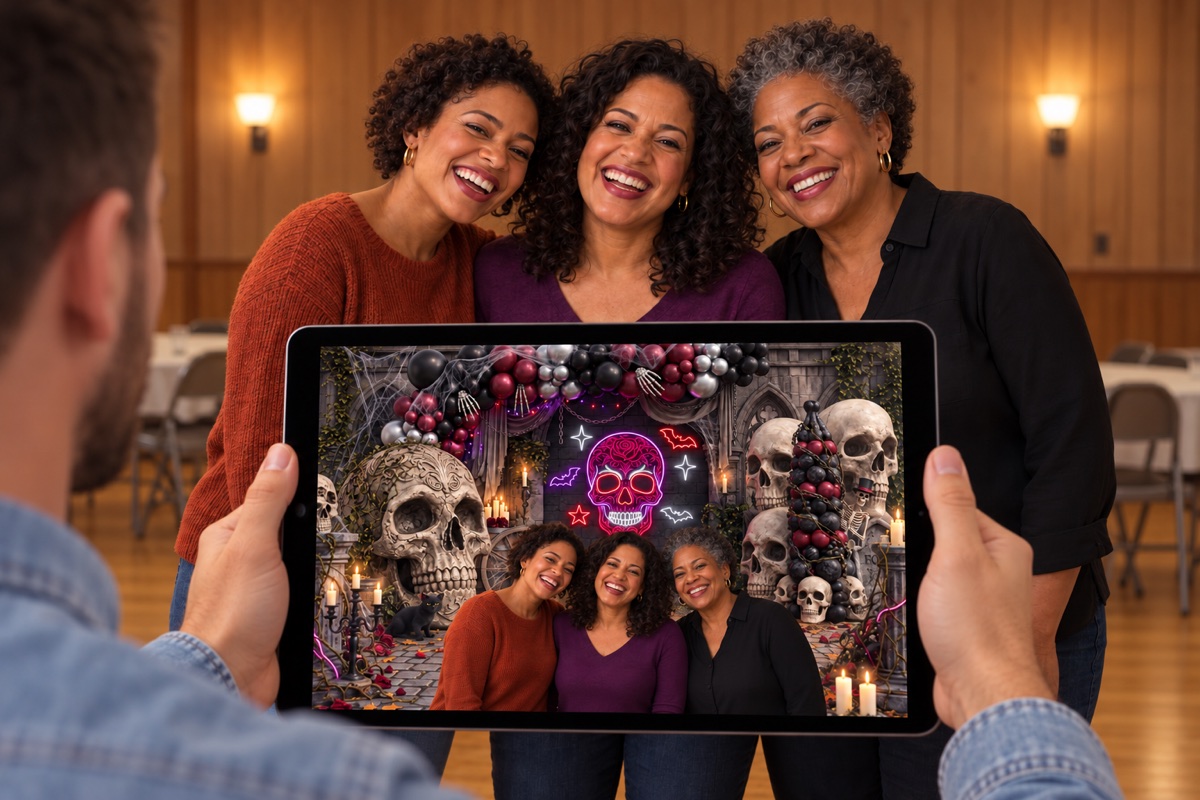
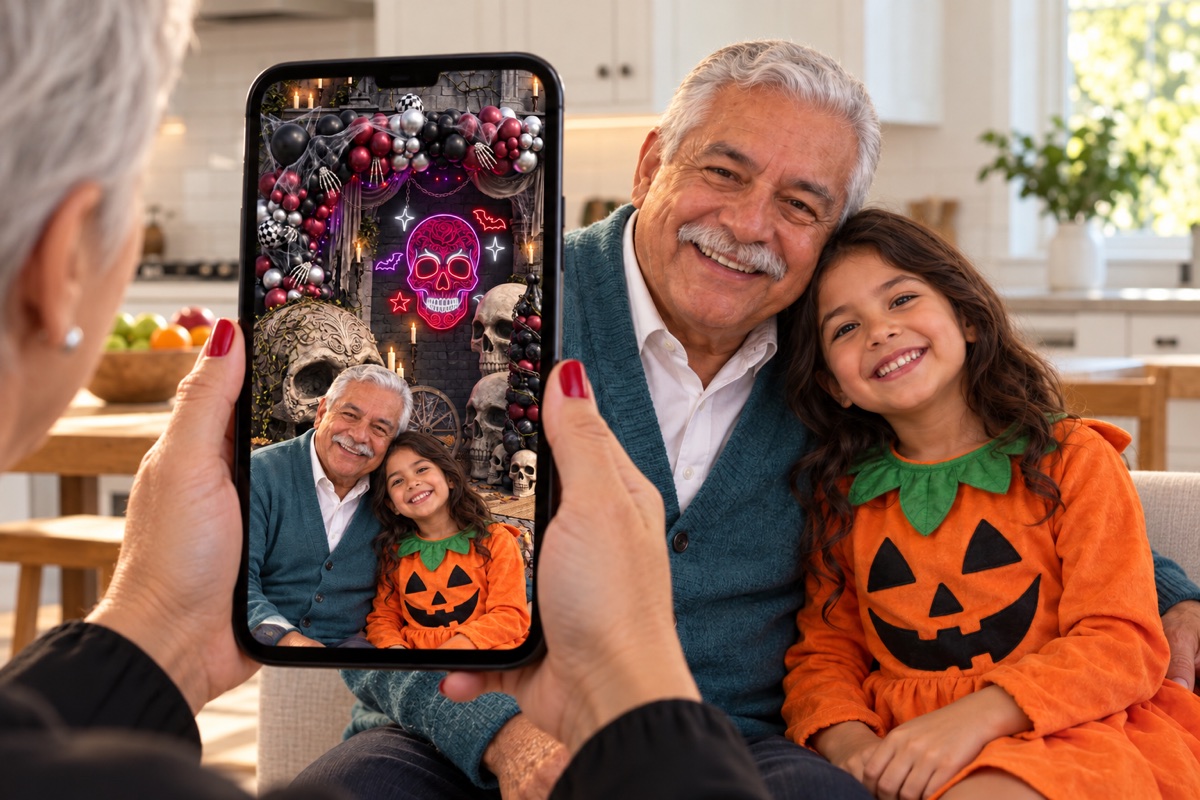
Three little steps
The Halloween scene appears in your phone’s camera preview. Your real room stays the same; the browser replaces its background in the photo.
Open the free Halloween test. Choose Selfie or Rear camera, tap Start camera and allow access.
Use soft, even light and check your hair and hand edges in the preview. No floor scanning or new app.
Tap Take photo, then Download or Share / save. Check Photos or Files; Retake lets you try again.
Early phone test: camera support and photo quality vary. Photos are processed on your device; no account, email or card is required.
A little help for a happier photo
Your ordinary room is welcome. A few small adjustments can help your people look their best.
Face soft, even light. Avoid a bright window or strong light behind you, which can leave faces dark.
You do not need a blank wall. Choose a safe, clear place to stand and leave room for the person holding the phone. Furniture and fine details can affect the cutout.
Hold the camera around face height and keep the phone steady. Make sure everyone fits comfortably in the preview; check hair and hands before taking the photo.
On iPhone, try Save / share photo and look for Save Image. Download file usually goes to Files → Downloads, not Photos. Check the destination you chose.
Open the test directly in current Safari on iPhone, rather than inside a social app. Choose Selfie or Rear camera, tap Start camera and allow access. Rear view depends on device/browser support. If denied, check this site’s camera permission in browser settings. The illustrated sample can test processing without a camera.
Check Photos if you chose Save Image in the share sheet, or Files → Downloads if you chose Download file. The page cannot confirm a save. If needed, use Open photo to save, then Safari’s share menu or touch and hold the image. Your captured photo stays on the test page until you retake, change scenes or leave.
Retake returns to the same scene and camera choice. Stop camera ends the session; the nearby Restart button starts again. Stop first if you want to change the scene or camera. Background separation can leave rough edges, so check the preview before saving.
Photos are processed in your browser. Living Murals does not upload, collect or store the photos you take with this photo booth. Photos you save stay on your device; sharing sends them to the service you choose. Privacy & how it works.